What self-enrollment options does Push provide?
Last updated: September 23, 2026
The recommended method for deploying the Push browser extension is a managed installation using device management software. However, you may have a need to allow employees to self-enroll via email or using a Push-provided landing page for enrollment.
Self-enrollment via email
You can allow employees to install the extension and enroll their browser by sending them a link via email.
Prerequisites: You must complete an integration with your identity provider first in order to sync in employee records and assign licenses to add those users to Push — or add those users manually and assign them a license. Then you’ll be able to send them email self-enrollment links for the browser extension.
From the Employees page in the Push admin console, select the employee(s) you wish to send enrollment links to. Then use the bulk actions option to select Send extension enrollment link. You can also send enrollment links from the Browsers page by going to Manage > Email enrollment and selecting the employees you want to send links to.
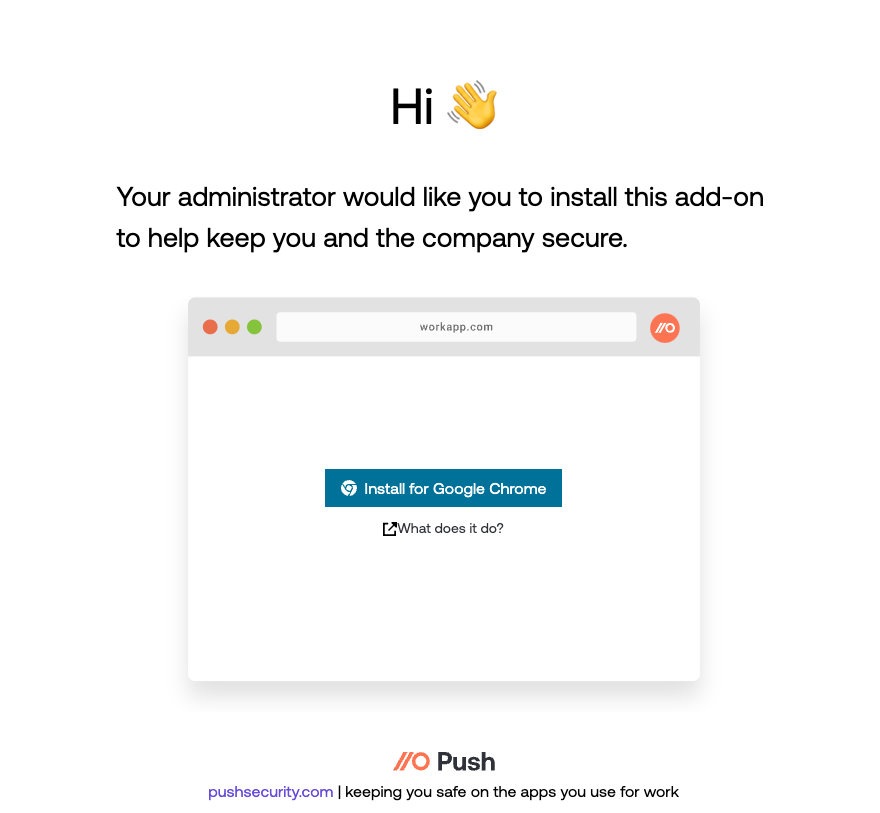
To complete installation of the extension, employees should click on the link in the email on each browser they use for work. The link will take them to an extension installation page where they can complete enrollment of their browser in Push.
Self-enrollment via landing page
You can invite employees to self-enroll in Push and install the browser extension themselves by directing them to a unique landing page. Once employees visit the landing page, they will be prompted to authenticate via OIDC using your identity provider in order to confirm their identity. Once confirmed, they will be prompted to install the Push browser extension and enrolled in Push.
Note: You must use Microsoft 365 as your identity provider for this option. In order for employees to be able to self-enroll via the landing page, they must successfully complete an OIDC login using a user principal name (UPN) that includes a domain that matches your Monitored domains on the Settings page in Push. In addition, you must have licenses available in your Push account in order for employees to be automatically enrolled.
From the Browsers page in the admin console, select Manage > Landing page. Send the unique URL to the employees you wish to enroll in Push.
Once employees visit the URL, they’ll be prompted to verify their identity by performing an M365 OIDC authentication. After that, they’ll follow the steps described above to install the Push extension.