Guide to ingesting Push events using Cribl Cloud
Last updated: August 24, 2026
Configure Cribl Cloud to allow for ingesting Push webhook logs.
Configure the log source in Cribl Cloud
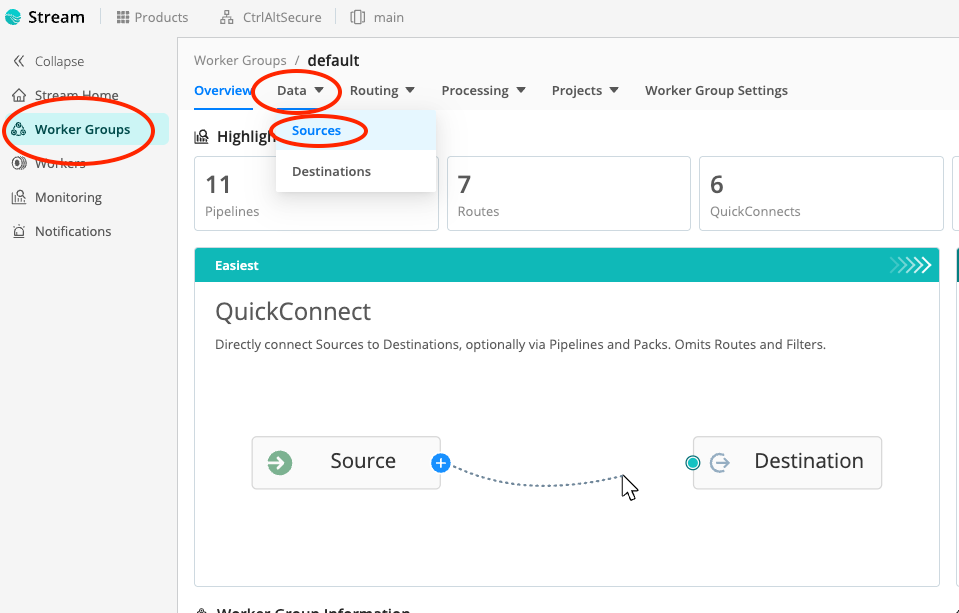
In your Cribl console, go to Cribl Stream > Worker Groups > Data.
Then select Sources from the dropdown.
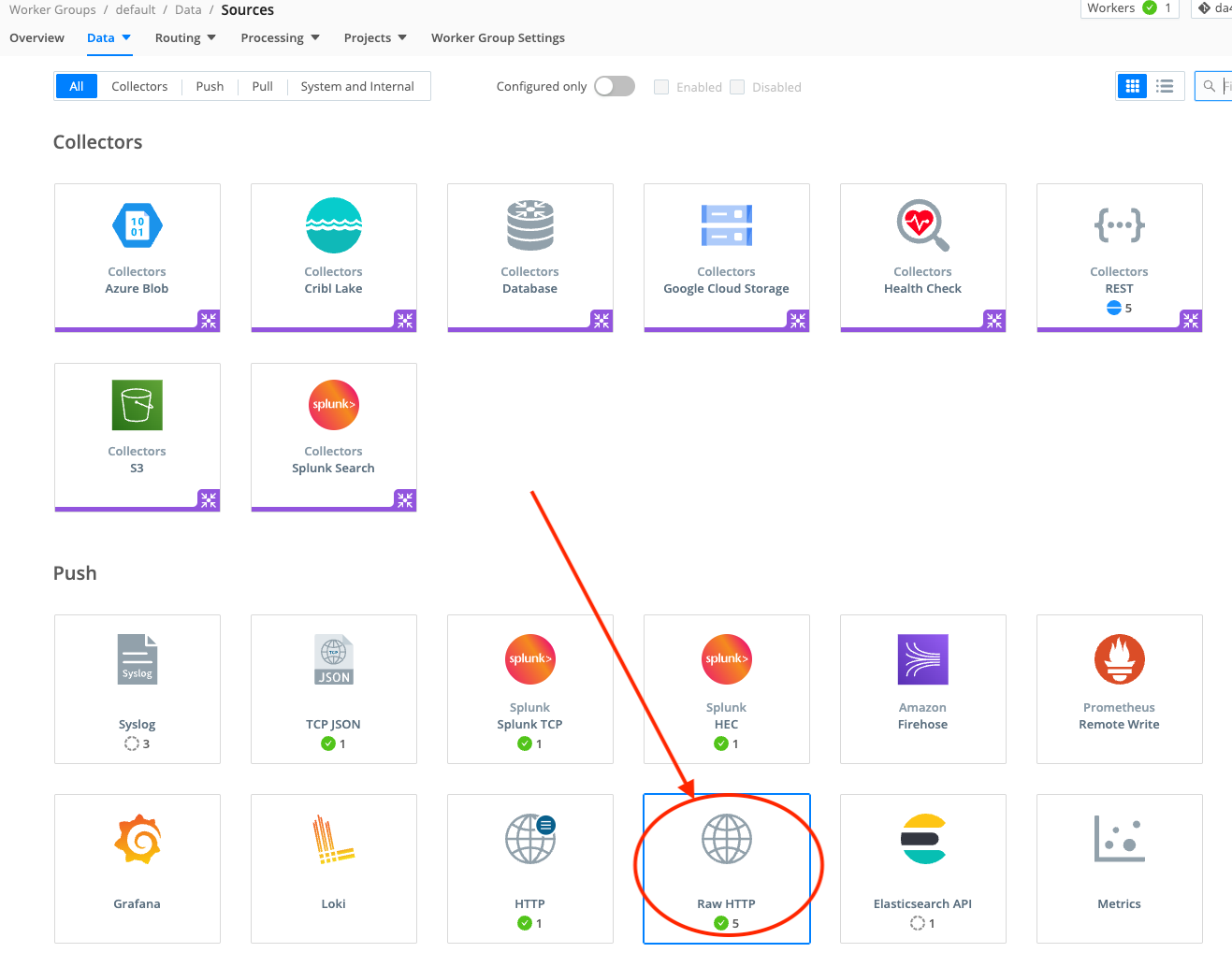
Select the Raw HTTP tile, then click Add Source.
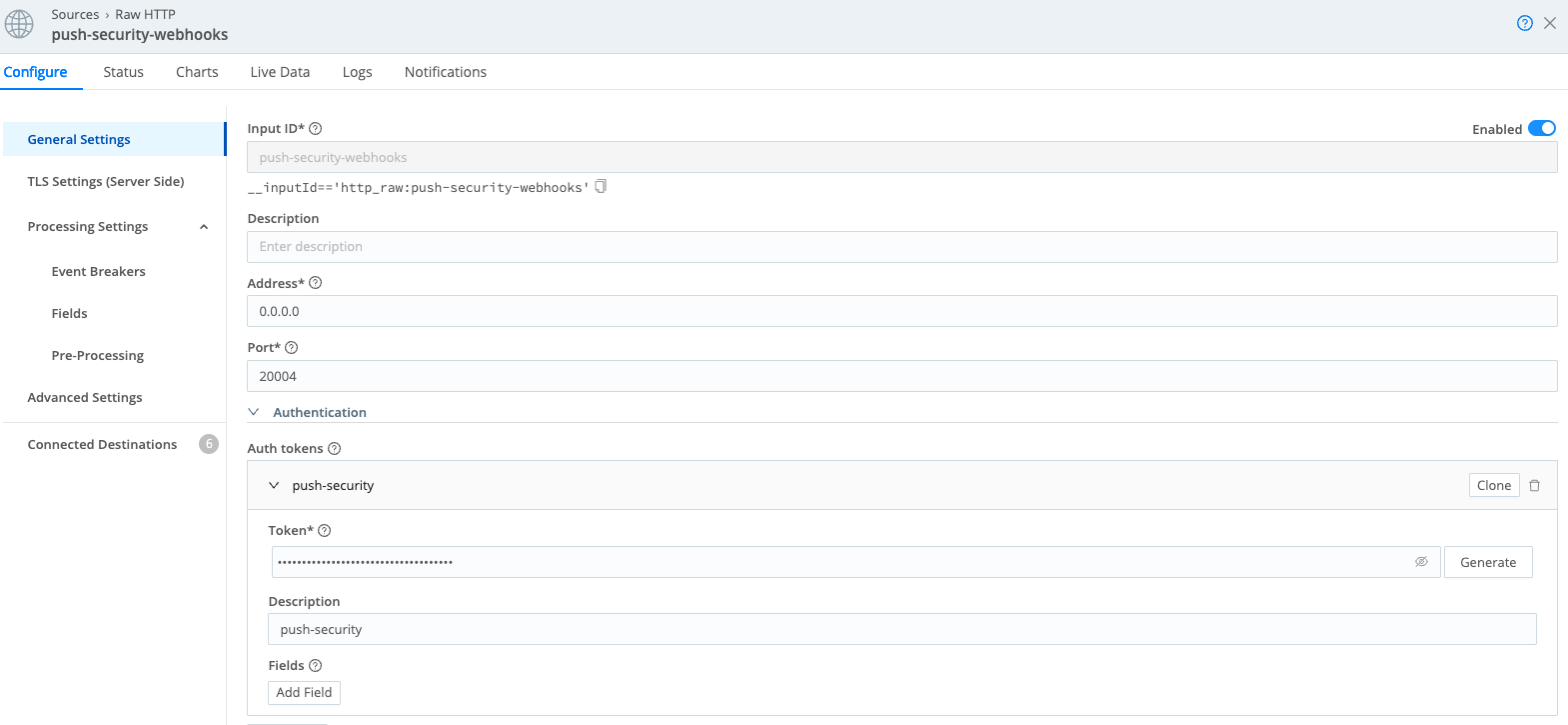
Configure the following fields for the new source:
Input ID: push-security
Address: 0.0.0.0
Port: Any port from 20000 - 20010
Auth tokens: Generate a token and save this securely to share with Push
Configure the integration in Push
In the Push admin console, go to Settings > Integrations and select the Cribl Cloud tile.
Input your URL and the Authorization Token from Cribl.
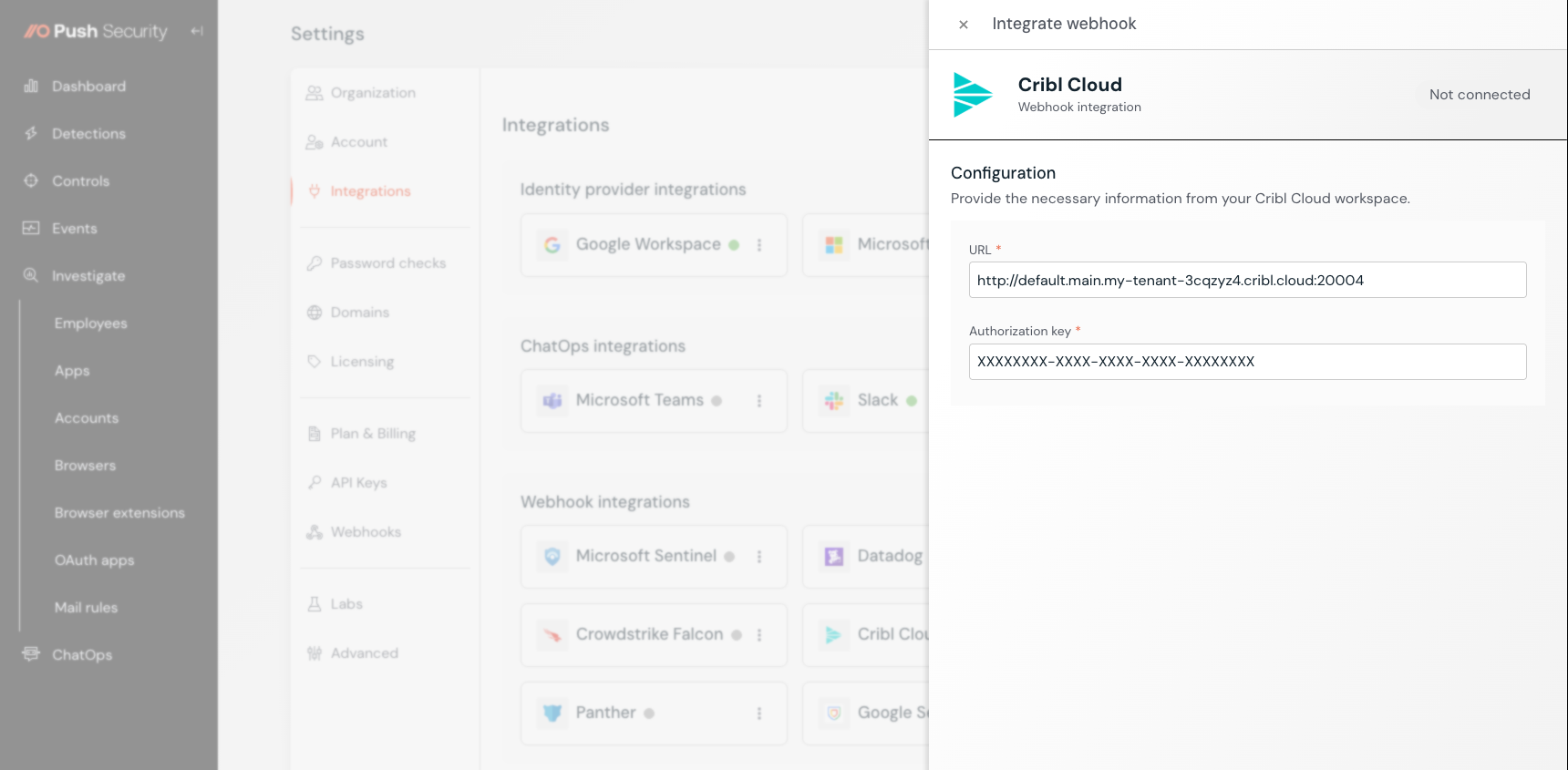
For the URL, you will append the port that you chose when configuring your Cribl log source fields. For example: If your Cribl URL is http://main-my-tenant-3cqzyz4.cribl.cloud and you chose port 20004 in your Cribl configuration, then the URL you would share with Push is http://default.main.my-tenant-3cqzyz4.cribl.cloud:20004
When you've entered those values, click Connect.