Guide to managed deployment using Google Admin console
Last updated: August 21, 2026
Overview
Deploy the Push browser extension using Google Admin console.
Prerequisites: Complete the steps required for browsers in your organization to be managed via the Google Admin console. For more information on enrolling browsers, refer to the Set up Chrome Browsers guide from Google.
You could have access to the Google Admin console through any of the following products:
Google Workspace
Chrome Browser Enterprise Support
Chrome Enterprise Upgrade
Chromebook Enterprise devices
Cloud Identity
Chrome Browser Cloud Management
You will also need the role of Super Admin, or you'll need to create a custom role with the minimum required privileges to add the Push browser extension. To create a custom role in the Google Admin console, go to Services > Chrome Management > Settings > Manage User Settings > Manage Application Settings.
Add the Push browser extension
To add the browser extension, log into the Google Admin console with the Super Admin role or a custom role with the privileges to manage application settings.
1. From the Google Admin console, go to the Users & browsers page. Select the relevant organizational unit in case you want to do a targeted deployment.
2. Click the plus sign to add the Push Security browser extension to your console.
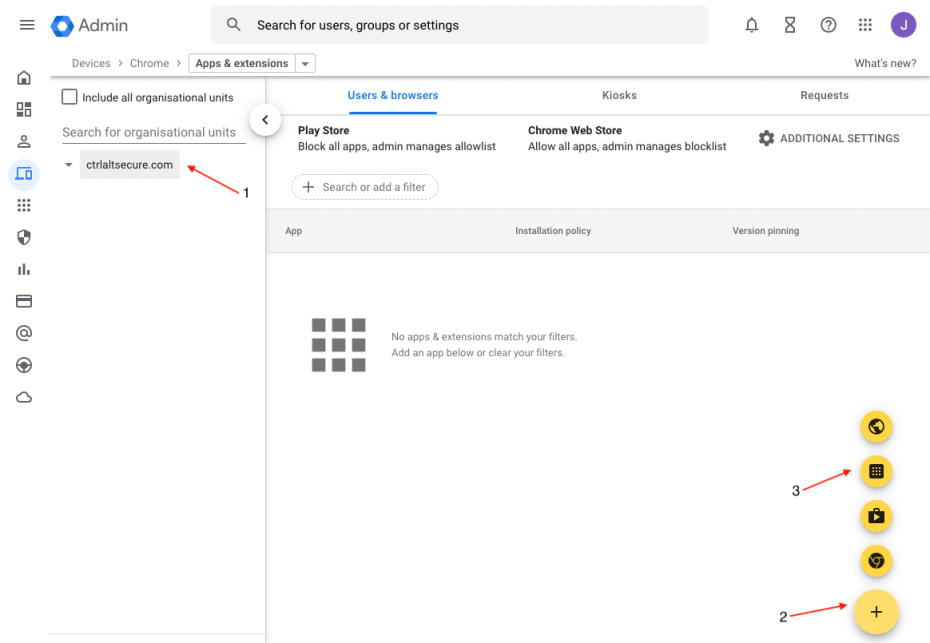
3. Select the Add the Chrome app or extension by ID button to open a frame in your browser.
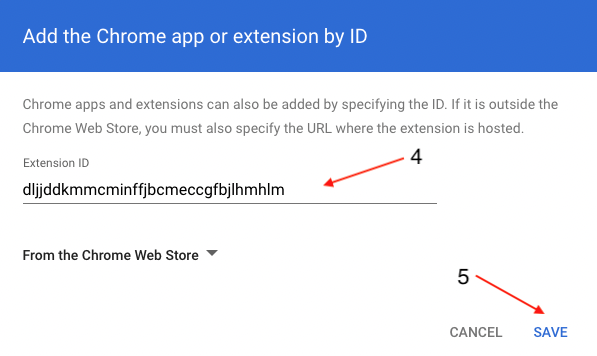
4. Enter the Extension ID dljjddkmmcminffjbcmeccgfbjlhmhlm.
5. Select Save to add the Push extension to your environment. This step will take a few minutes to complete.
Generate the extension config
Before you can apply the extension's deployment settings, you must generate a config file within the Push admin console. If you have already done this, skip to the section Apply the extension policy.
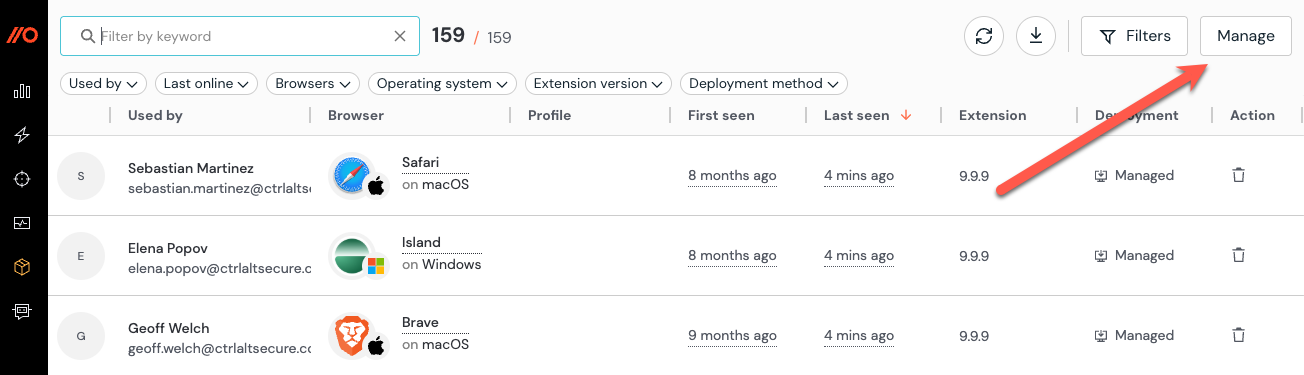
6. Log into the Push admin console and go to the Browsers page.
7. Select Enrollment options.
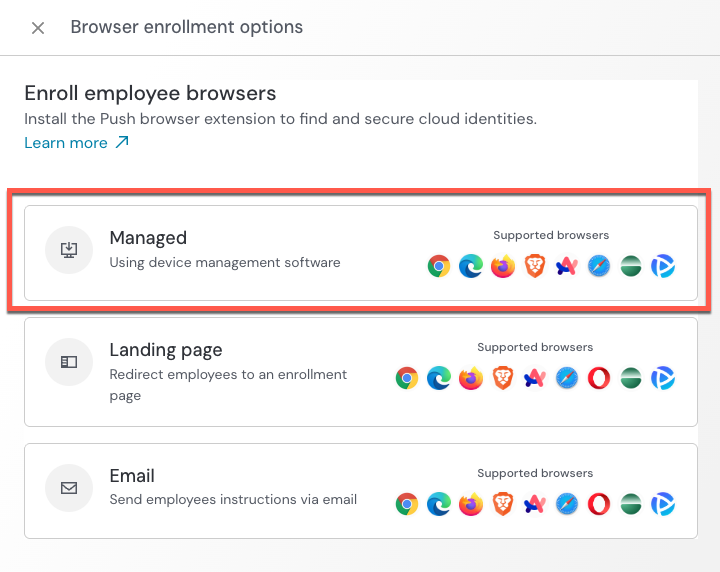
8. From the modal, select the Managed option.
9. Select Enterprise Browsers > Chrome Enterprise.
10. Select Generate config.
11. Download the provided config file, which is specific to your team.
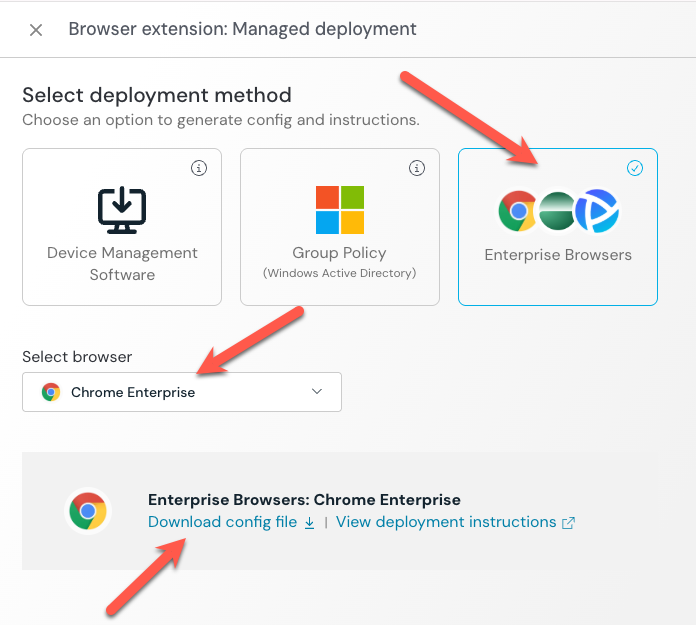
Once you've downloaded and extracted the zip file, head back to the Google Admin console to perform the next steps.
Apply the extension policy
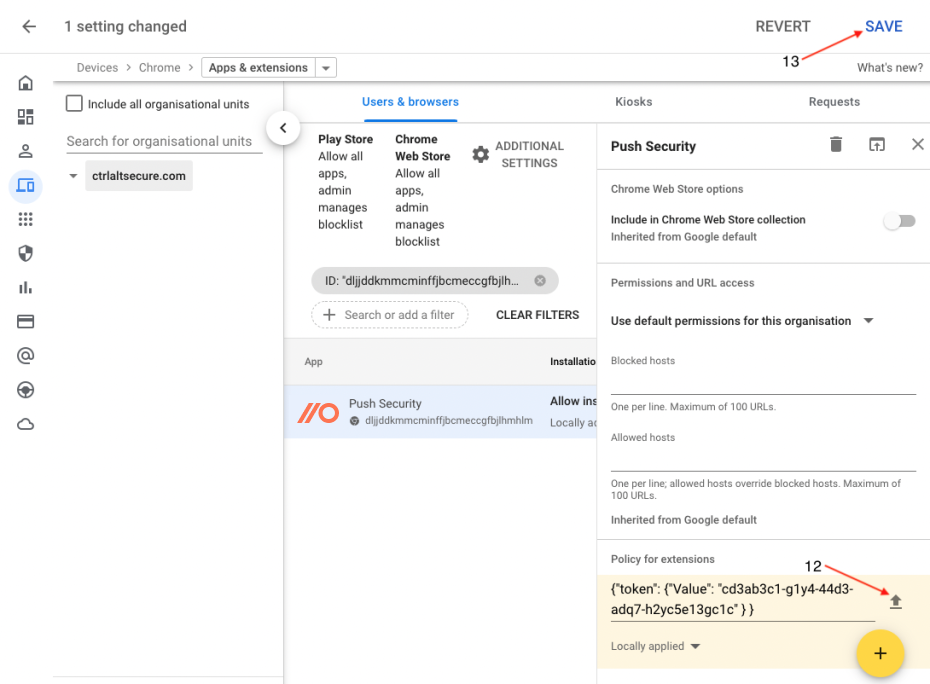
In the Google Admin console, click on the Push Security extension to open a details pane on the right side of your screen.
12. With the extension details pane open, upload the config file (policy.txt) generated by the Push app using the upload icon next to the Policy for extensions section.
13. Select Save in the top right.
14. Set the installation policy to Force install.
15. Finalize the changes by selecting Save.
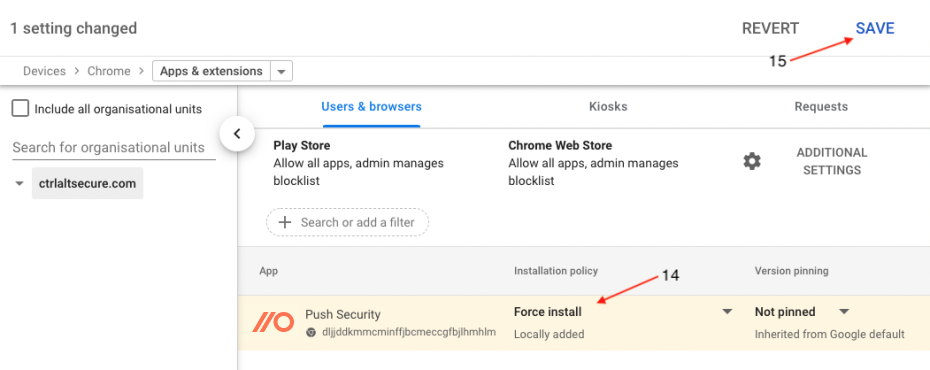
The Push browser extension will now start rolling out to users in the selected organizational unit.
If you have any questions or need help, contact us.