Enrolling Push Security with Microsoft Conditional Access
Last updated: November 20, 2026
This document outlines the technical requirements for users with Defender for Cloud Apps who want to require the Push Extension as a required install in order to access corporate Microsoft resources.
Use Case
This use case is used for organizations that have one of two scenarios in place.
Large BYOD or “unmanaged endpoint” environment (IE: contractors) who the organization wants some level of password/authentication visibility/enforcement but does not have the capability to force register/install a browser extension via group policy or an MDM solution.
An organization wants additional “defense in depth” or security checks around access to Microsoft resources.
Effectively, this deployment will require the install of the push extension via conditional access policies managed by Defender + Entra.
Before You Begin
Note: In order to be eligible for Push Security Browser Extension being a requirement before accessing Microsoft resources, you must have the following per Microsoft's Documentation:
A Defender for Cloud Apps license, either as a stand-alone license or as part of another license
A license for Microsoft Entra ID P1, either as stand-alone license or as part of another license
Administrative Access to the Push Console
Administrative Access to Defender for Cloud Apps
Administrative Access to Microsoft Entra
Please refer to the licensing table section below
Licensing Table
In order to help customers navigate their license entitlements, we have prepared the table below to determine eligibility based on common licensing arrangements. Please refer to Microsoft documentation here for details on requirements: https://learn.microsoft.com/en-us/defender-cloud-apps/access-policy-aad
Microsoft 365 Licensing | Entra P1 | Defender For Cloud Apps | Eligible for Push Security Conditional Access Requirement? |
|---|---|---|---|
E3 | ✓ | ✖ | No - missing Defender for cloud Apps |
E5 | ✓ | ✓ | Yes |
F1 | ✓ | ✖ | No - missing Defender for cloud Apps |
F3 | ✓ | ✖ | No - missing Defender for cloud Apps |
Microsoft Enterprise Mobility + Security E3 | ✓ | ✖ | Yes |
Microsoft Enterprise Mobility + Security E5 | ✓ | ✓ | Yes |
Defender Suite FLW (formerly Microsoft 365 F5 Security) | ✓ | ✓ | Yes |
Defender for Cloud Apps Standalone | ✖ | ✓ | No - missing Entra P1 |
Entra P1 as a standalone license, with Defender for Cloud Apps as a standalone license | ✓ | ✓ | Yes |
Push Security Configuration
Session token theft
Navigate to https://console.pushsecurity.com/app/controls
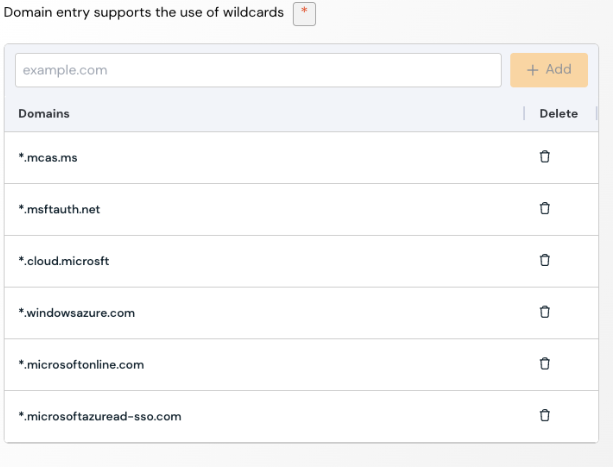
Configure Session token theft settings with the following URLs:
*.[mcas.ms](<http://mcas.ms>)*.[msftauth.net](<http://msftauth.net>)*.[cloud.microsoft](<http://cloud.microsoft>)*.[windowsazure.com](<http://windowsazure.com>)*.[microsoftonline.com](<http://microsoftonline.com>)*.[microsoftazuread-sso.com](<http://microsoftazuread-sso.com>)
The settings will look like this below in the Push Security console.
Save the unique marker to configure in the Defender Policy
Landing page
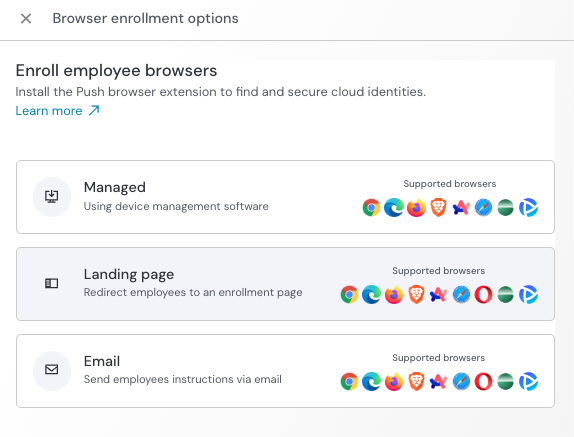
Navigate to https://console.pushsecurity.com/app/browsers
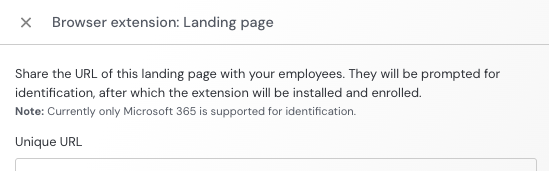
Go to Manage > Landing page
Save the unique URL to configure in the Defender Policy
Microsoft Configuration
Defender Policy
Create a new Defender policy at https://security.microsoft.com
Navigate to Cloud apps > Policies > Policy management > Create policy > Access policy
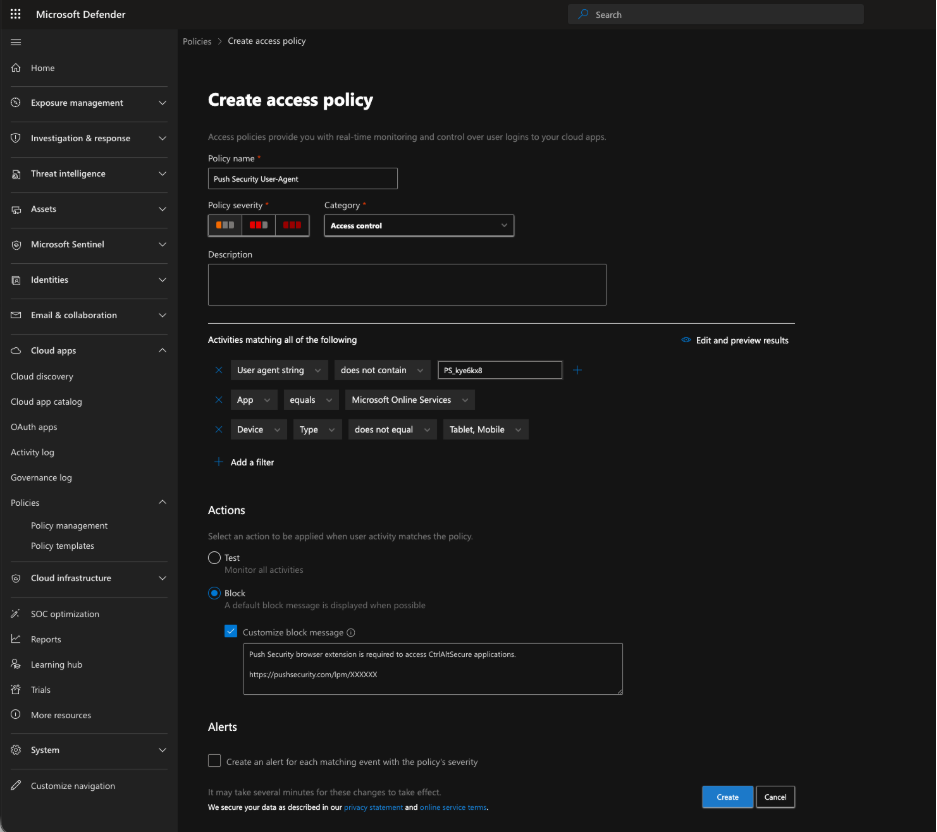
Configure the policy with the following settings:
Policy name: Push Security User-Agent
Category: Access control
Filters:
User agent string
does not contain
Your unique marker (EXAMPLE: PS_xxe6xx8)
App
equals
Microsoft Online Services
Device [Optional]
Type
does not equal
Tablet, Mobile
Actions:
Block
Customize block message:
"Push Security browser extension is required to access Microsoft applications. Please install the Push Security extension at your unique url (Example: https://pushsecurity.com/lpm/axX46e)"
Note: Your Defender Policy Should look like the following:
CA Policy
Create a Conditional Access Policy at https://portal.azure.com/#view/Microsoft_AAD_ConditionalAccess/ConditionalAccessBlade/~/Overview
Navigate to Create new policy
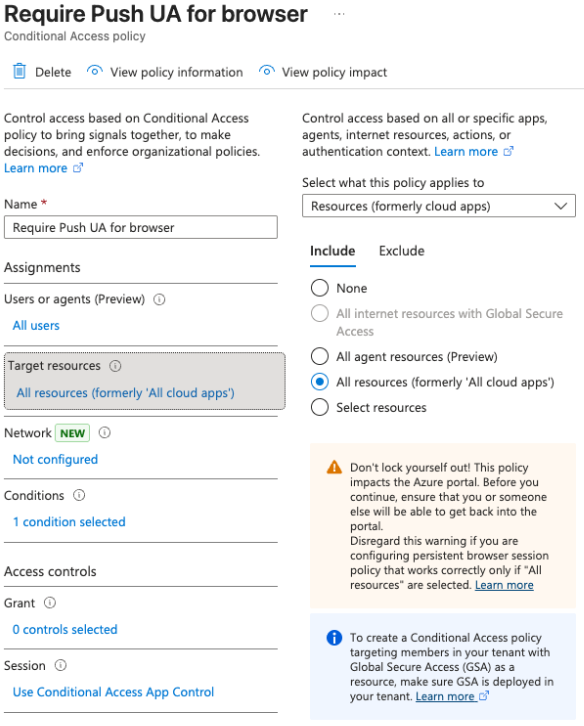
Configure the following settings:
1. Name: Require Push UA for browser
2. Users or agents: All users
3. Target resources: All resources
4. Conditions: [Optional]
Device platforms
Configure: Yes
Exclude: Android, iOS, Windows Phone
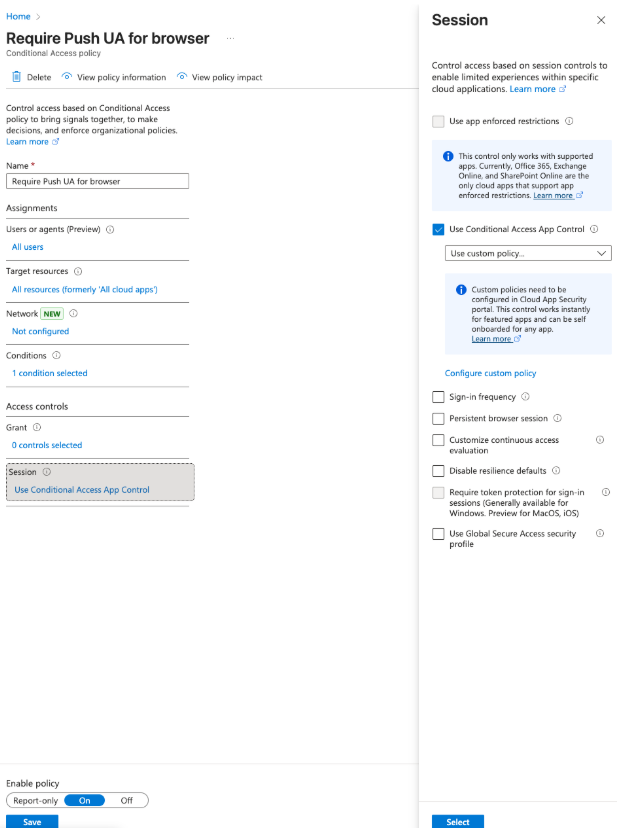
5. Session:
Use Conditional Access App Control
Use custom policy…
Note: This tells Entra ID to route the session through Microsoft Defender for Cloud Apps, where your access policy will be evaluated. No further configuration is needed.
6. Enable policy: On
Note: see sample Entra Configurations Below:
User Experience
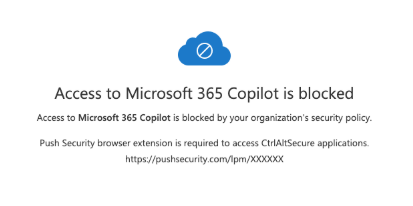
When a user authenticates without the Push Security extension installed, they will be presented with the custom message configured in the Defender policy, prompting them to install the Push Security extension.