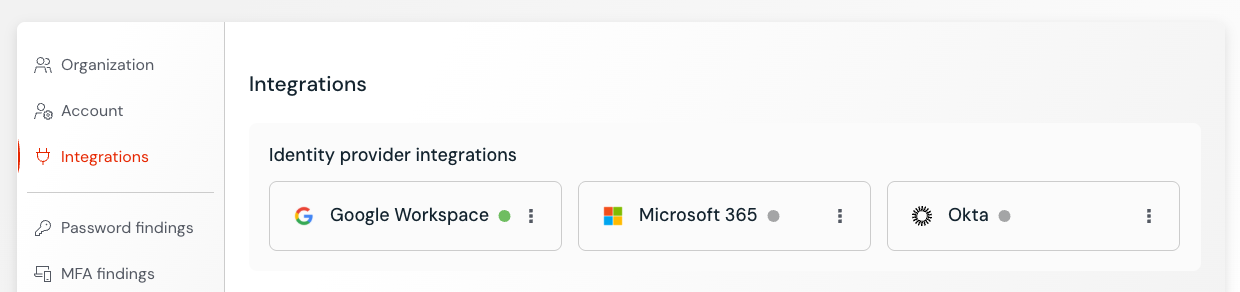
What identity providers does Push integrate with?
Last updated: November 13, 2026
Push supports identity provider integrations with Microsoft 365, Google Workspace, and Okta. By integrating your IdP with Push, you can gain visibility of your connected OAuth apps (in the case of M365 and Google), your SSO-supported apps (in the case of Okta), and any mail rules that may need to be reviewed and removed.
Syncing your identity provider also allows Push to import basic employee details if you wish to manually assign licenses rather than using the default auto-licensing option in combination with your MDM deployment.
Note: Syncing your IdP does not sync your IdP-managed user groups. Refer to this related article on managing employee groups in Push for help.
What permissions are required?
We request the minimum scopes possible for our API integration and let you customize them if you prefer. When configuring your integration, you can remove any scopes you don’t want to allow (note: Okta does not support per-scope configuration, but Microsoft and Google do), as well as view sample data for each scope requested.
To view scopes and make changes, select View access permissions from the Integrate an identity provider slide-out panel on the Apps page in the Push admin console.
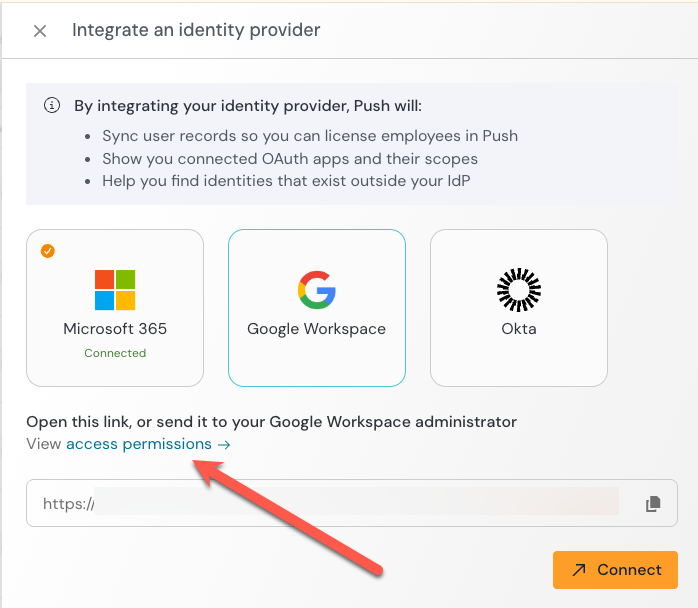
On that screen, you can disable individual scopes to see which Push features will be disabled, so that you can visualize the impact of customizing the access permissions.
You can view a description of scopes for Microsoft 365, Google Workspace, and Okta in this related article.
Integrating with M365 or Google Workspace:
You can integrate Push with Microsoft 365 or Google Workspace via an API integration that uses OAuth. If you use both platforms, you can integrate both with Push.
Prerequisites: To complete the API integration, you’ll need an administrator role in M365 or Google Workspace with permission to complete OAuth integrations. For Microsoft, this is the global administrator role. For Google, it is the Super Admin role.
Log into the Push admin console and go to the Apps page.
Select Manage in the top right corner and choose Integrate identity provider.
On the slideout, select M365 or Google. If you’re not the administrator of the work platform, you can share the provided integration link with your admin to complete the setup. Otherwise, click Connect to proceed.
Consent to the OAuth integration screen. For Google Workspace, you'll also need to give permission to Push through domain-wide delegation.
Wait a moment for Push to pull in the employee data.
Integrating with Okta
To integrate with Okta, you'll use a client secret, your Okta domain, and your client ID to complete the integration configuration. After integrating with Okta, Push will sync your employee records.
Prerequisites: To complete the API integration, you’ll need an administrator role on your Okta tenant.
To integrate with Okta:
Log into the Push admin console and go to the Apps page.
Select Manage in the top right corner and choose Integrate identity provider.
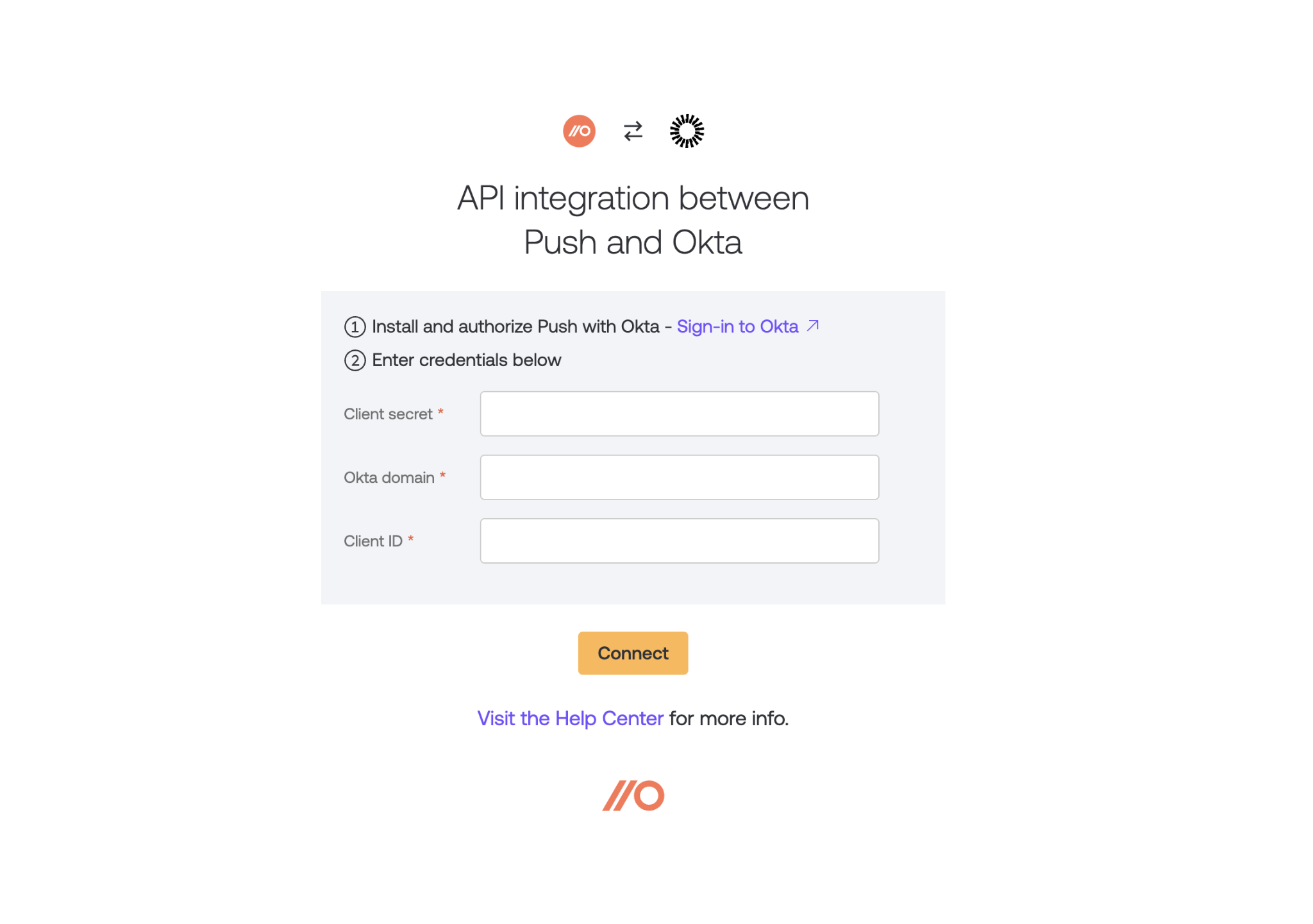
On the slideout, select Okta. Open the integration URL to access the configuration screen.
Select Sign in to Okta and leave the Push integration configuration tab open to return to it later. You must log in to Okta in order to generate the client secret and copy your Okta domain and client ID to complete the integration configuration.
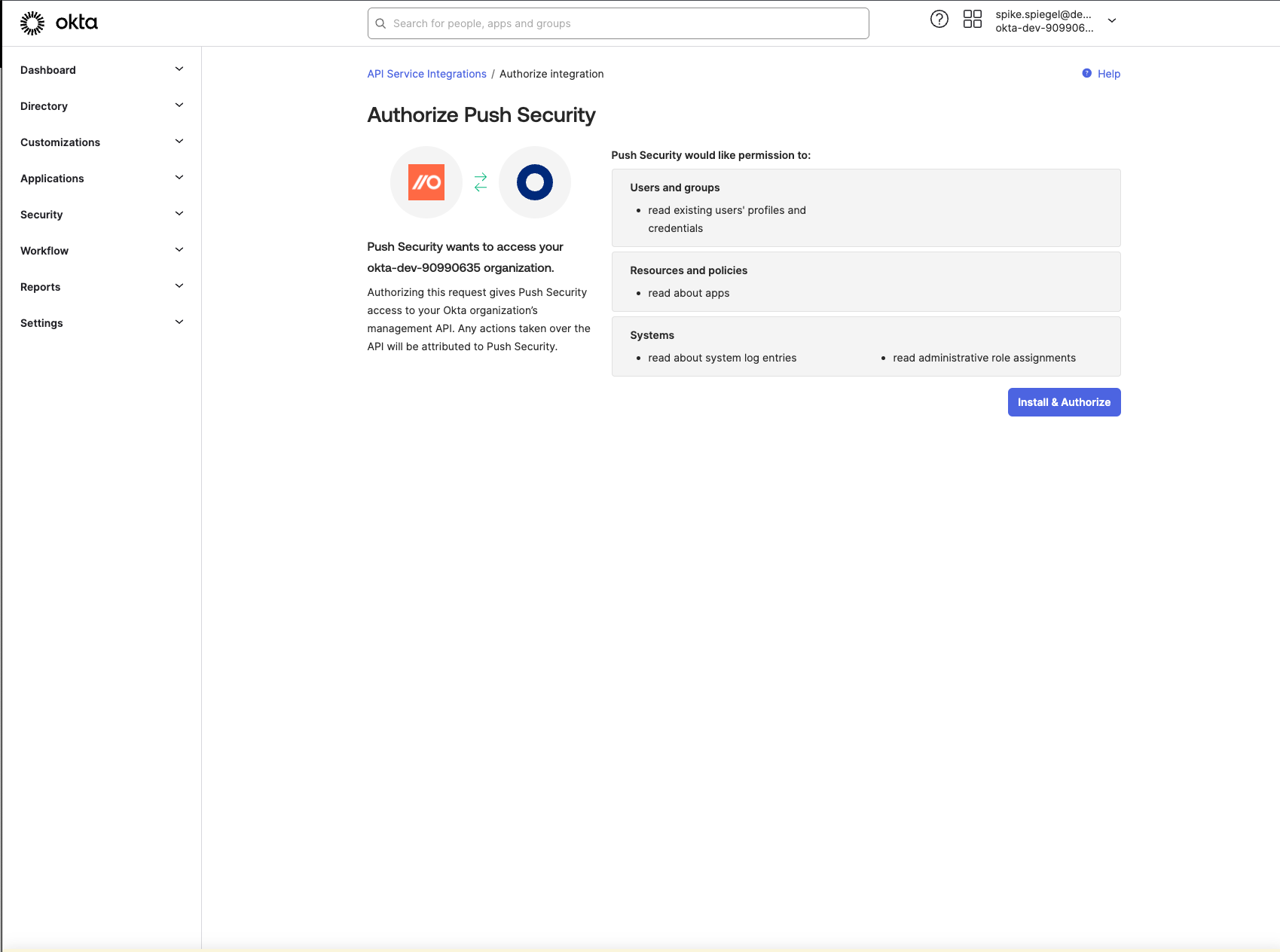
In Okta, select Install & Authorize to install the integration and generate your client secret.
Important! Once you’ve generated the client secret, you can see it only once. Copy it so you can enter it on the Push integration configuration screen from step 4.
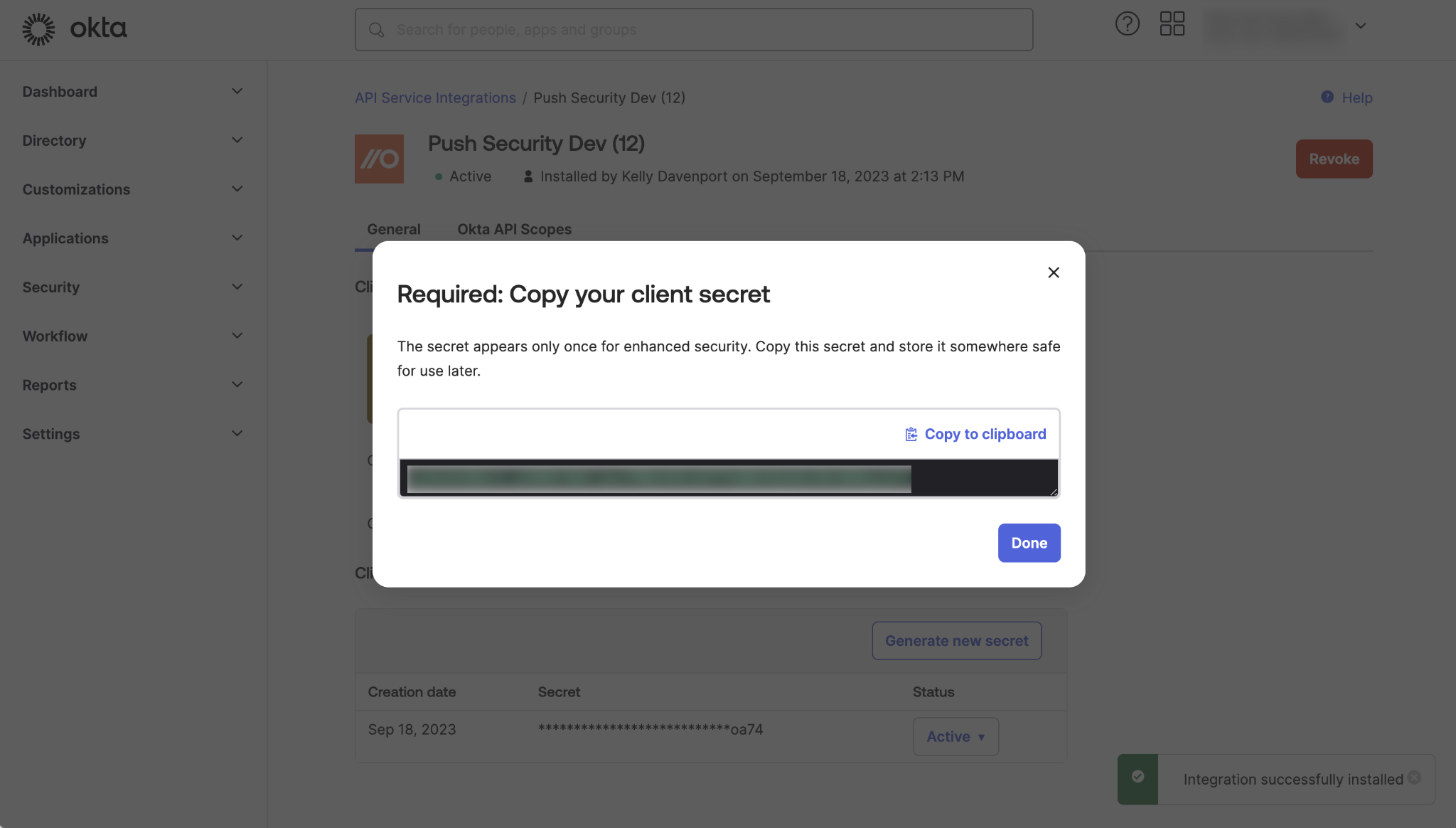
Once you’ve copied the client secret and closed the window, you’ll see your Okta domain and client ID.
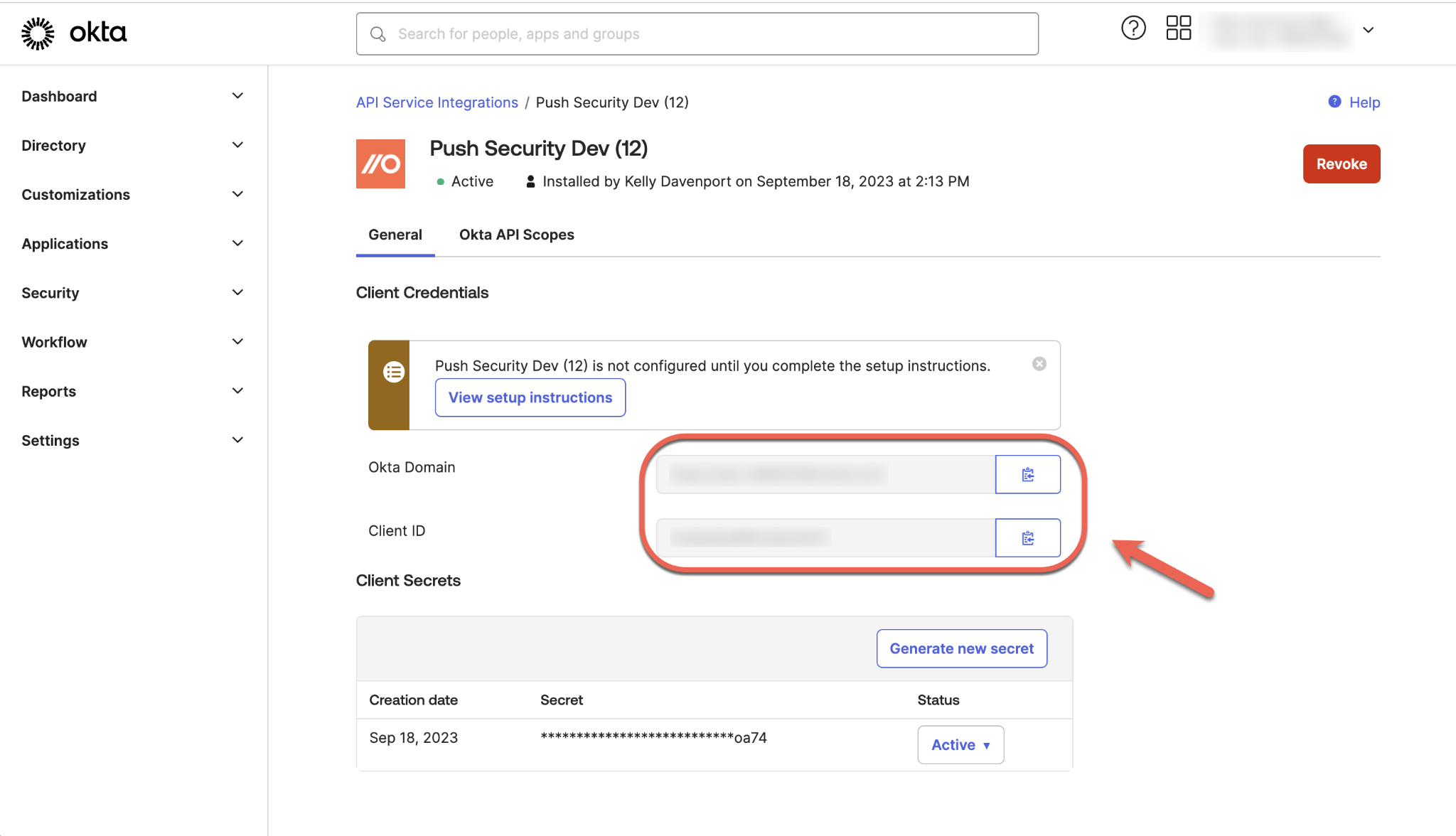
Copy those over to the Push integration configuration screen, too.
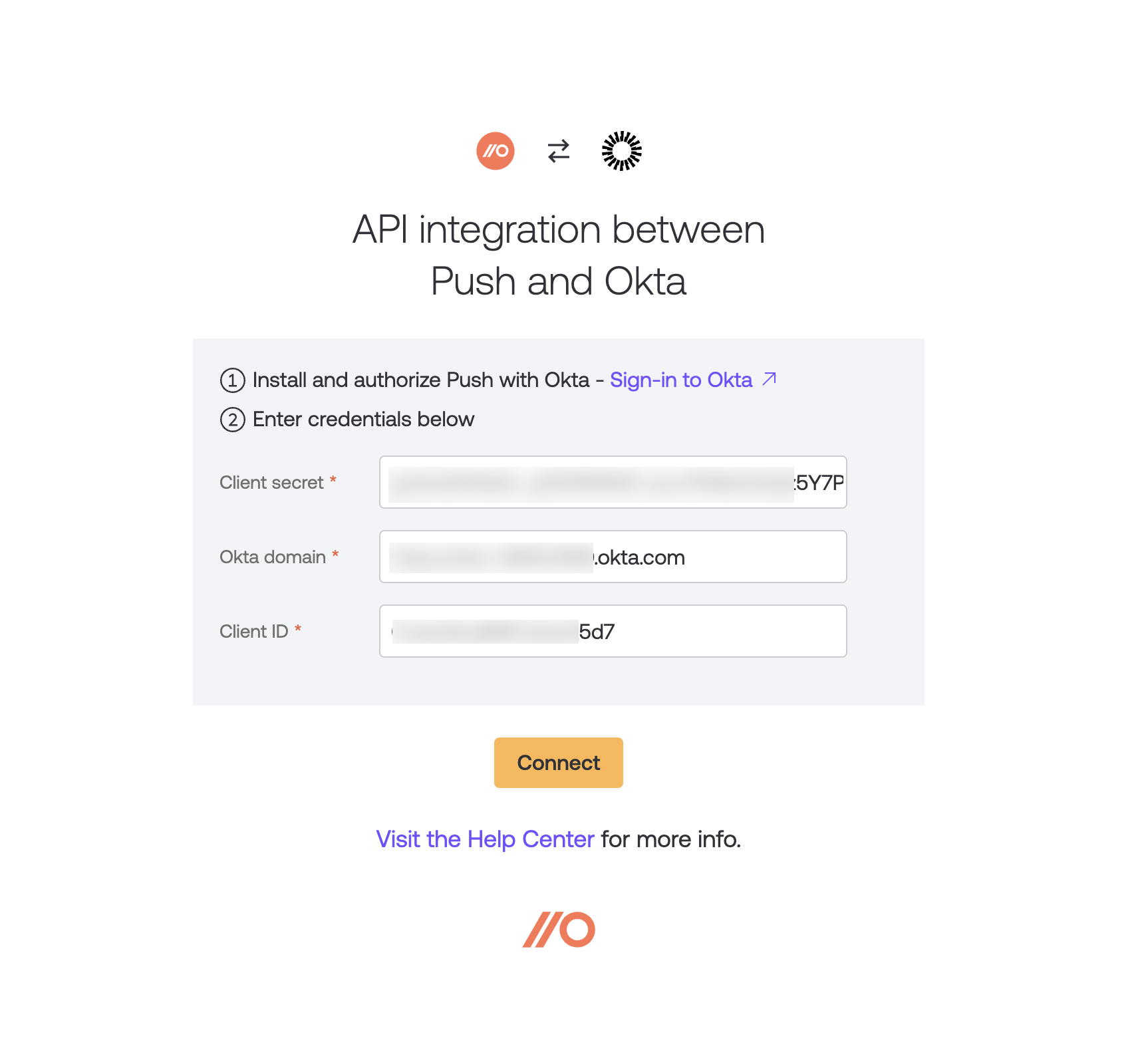
Select Connect to complete the integration.
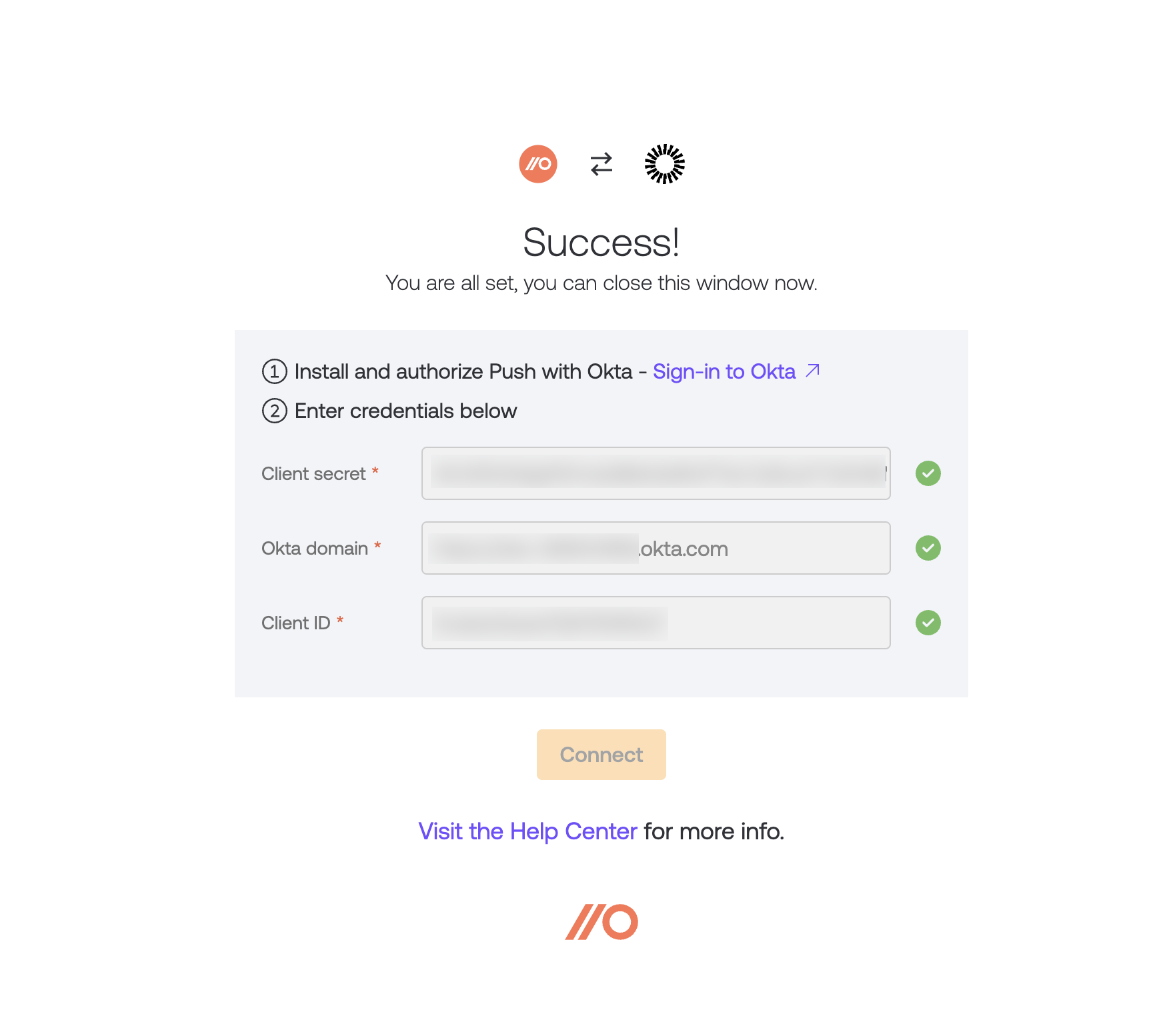
Once you’ve completed the integration, you can close the integration configuration screen.
Note: If you don’t have admin permissions in Okta, you’ll see an error when you open the integration URL provided by Push.
Revoking an identity provider integration
You can delete a work platform integration by going to Settings > Integrations in the admin console. Removing an integration will also remove from Push all the employee records tied to that integration, as well as their associated account activity data from that integration. Employees with no other associated accounts in Push will be removed from the Push platform.