Guide to your initial Push admin console setup
Last updated: November 17, 2026
Overview
After your Push tenant is provisioned, you can complete the initial setup of the admin console. You’ll need to set up MFA for your administrator account, invite other admins and assign them roles, configure which domains Push should protect, and decide on your deployment strategy.
Admin login options
We recommend you use a Microsoft 365 or Google Workspace social login when signing up to use Push, or use multi-factor authentication (MFA) protection for your administrator account if you are using a username and password.
You can also configure SAML authentication for the admin console. Go to Settings > Organization > SAML configuration to get started.
Add admins to your tenant
To invite other administrators to the Push admin console, go to Settings > Organization to send an invitation via email. When you invite a new admin, you’ll need to set their role: Owner, Full access, or Read only. Learn more.
Configure your monitored domains
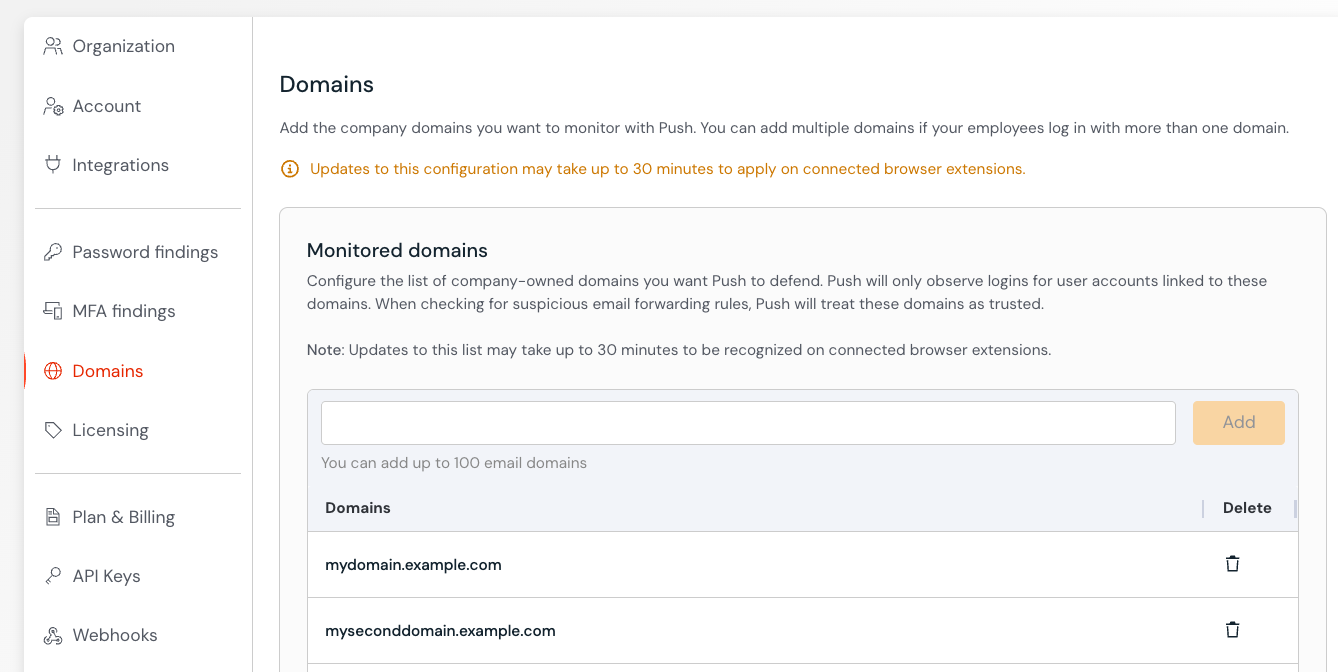
You can configure Push to observe user logins for your company-owned domains, or for all domains used by employees to access work apps, including their personal accounts. When producing your inventories (apps, accounts, etc.), Push will use these domains to report on employee usage activity.
To specify your preference, add your domain list to Domains > Monitored domains in the admin console. You can add multiple corporate domains if you wish.
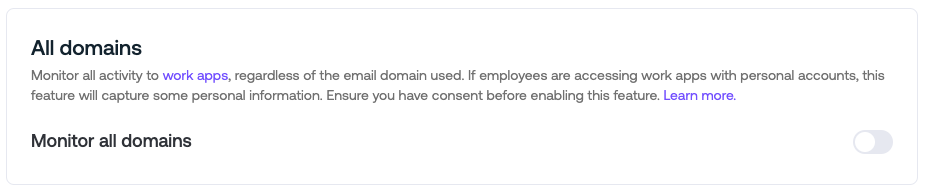
To monitor all activity to work apps, regardless of the email domain used, enable the Monitor all domains toggle. By default, Push does not observe logins from personal accounts. Learn more about this feature.
Specify your custom login URLs
If you use a custom login URL for your identity provider or other apps, you’ll need to add those at Settings > Advanced > Custom login URLs so that Push can correctly observe employee logins, classify the login method, and apply your configured security controls. Learn more.
Admin console overview
From the admin console, you can monitor and investigate detections, add and manage users and administrators, configure security controls and platform settings, complete integrations, and view a dashboard and inventories of your apps, accounts, extensions, and more.
You can also programmatically administer most features of Push using the Push REST API. To share Push data with other systems, such as SIEM / SOAR, compliance platforms, or ticketing systems, use Push’s webhooks.
The admin console provides:
A Dashboard overview of recent detections, security findings, and other trends
A Detections page with details about a detection for triage and investigation
A Controls page where you can configure Push controls
An Events page that provides a rolling 30-day snapshot of events generated in your environment, including admin audit logs
Inventories of employees, apps, accounts, browsers, browser extensions, OAuth apps, and mail rules in your environment
A Settings page where you can administer tenant-wide settings for your organization, including integrations with SIEM and other third-party services, and exception rules for findings
Admin audit events
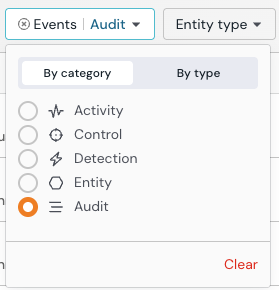
Get visibility of actions taken by administrators on the Push platform using admin audit events. To View recent events on the Events page you can filter by the event category of Audit.
To consume an ongoing log of admin events, use Push’s webhooks.
Extended admin audit logging
If you wish to enable more verbose admin audit logging, enable Extended admin audit logging in the Push admin console by going to Settings > Advanced > Extended admin audit logging.
This extended logging will emit an event each time an admin visits (or refreshes) an admin console page that contains user data, including the filters that were applied:
Events
Employees
Apps
Apps (Other)
Accounts
Browsers
Browser extensions
OAuth apps