How do I add Notifications to a private Slack channel?
Last updated: August 24, 2026
You can use Push to send notifications to specific security team or IT team channels.
By default, the Push Slack app has access only to public channels. To add the Push app to private channels, you will need to update the integration settings for that channel before it will appear as an option in the security team topics channel list.
Add the Push app to your private channel
Open Slack and go to your private channel. Then open the channel settings and go to the Integrations tab.
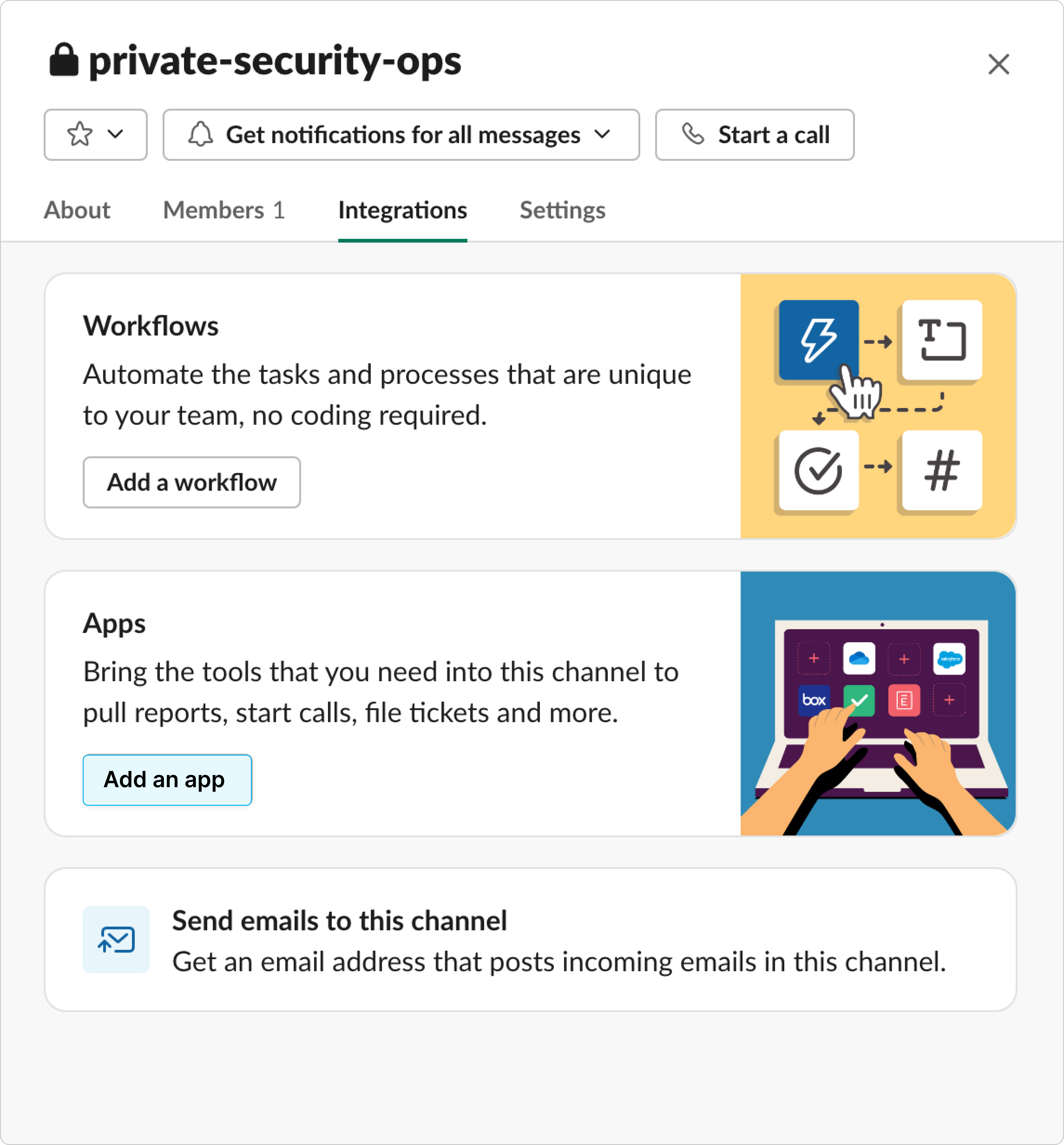
Once there, click "Add an app," and you will be presented with a list of apps already installed on your Slack workspace. Find and add the Push Security app, which should look something like this:
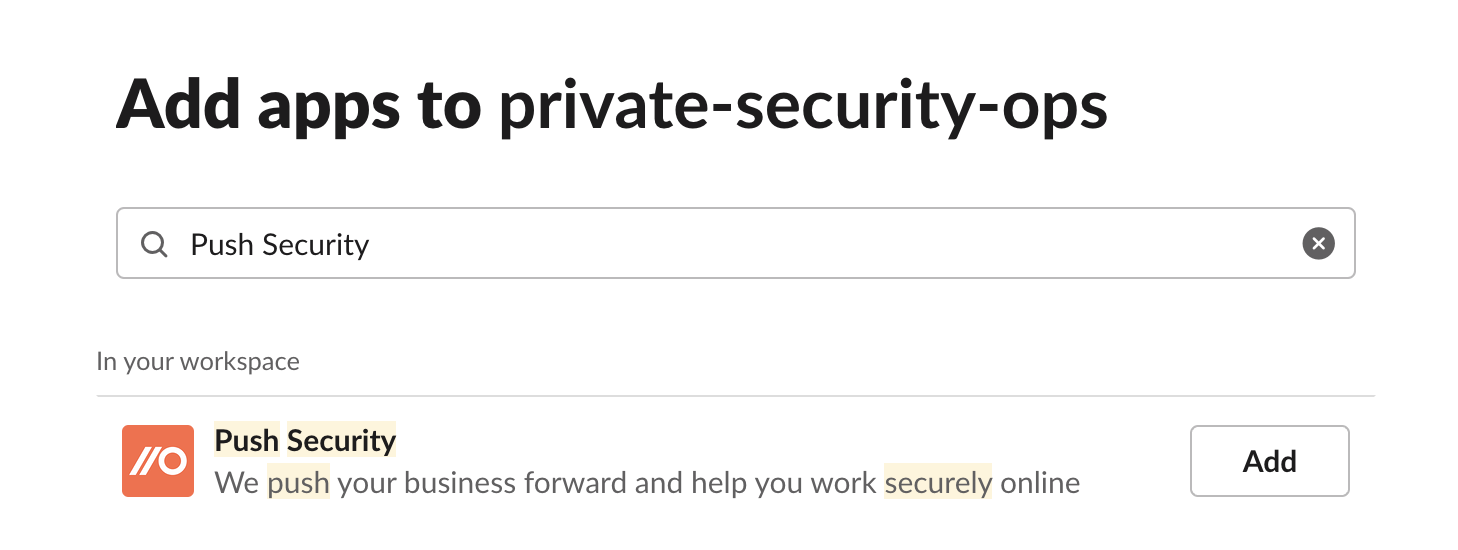
Your private channel should now be selectable on the Notifications configuration screen.
If you don't see Push in your app list in Slack, make sure you are in the same Slack workspace where you originally installed it.