Configure Notifications
Last updated: November 18, 2026
Overview
Use Push’s Slack or Microsoft Teams integrations to receive real-time notifications when Push finds new detections, security findings or other changes in your environment, such as new apps being used by employees.
Install Push’s notification app on your Slack or Microsoft Teams workspace and then choose which topics you want to receive messages about.
What permissions are required?
Slack scopes
Scope | Purpose |
chat:write | Post messages in approved channels and conversations. |
im:write | Start direct messages with people |
users:read | View people in a workspace. |
users:read.email | View email addresses of people in a workspace. |
im:history | View messages and other content in direct messages that your slack app has been added to. |
channels:read | View basic information about public channels in a workspace. |
groups:read | View basic information about private channels that your slack app has been added to. |
channels:join | Join public channels in a workspace. |
mpim:read | View basic information about group direct messages that your Slack app has been added to. |
im:read | View basic information about direct messages that your Slack app has been added to. |
app_mentions:read | View messages that directly mention @your_slack_app in conversations that the app is in. |
Microsoft Teams scopes
Scope | Purpose |
Channel.ReadBasic.All | Read channel names and channel descriptions, on behalf of the signed-in user. |
MailboxSettings.Read | Allows the app to read the user’s mailbox settings. Does not include permission to send mail. |
Team.ReadBasic.All | Read the names and descriptions of teams, on behalf of the signed-in user. |
TeamsAppInstallation.ReadWriteSelfForTeam.All | Allows a Teams app to read, install, upgrade, and uninstall itself in any team, without a signed-in user. |
TeamsAppInstallation.ReadWriteSelfForUser.All | Allows a Teams app to read, install, upgrade, and uninstall itself to any user, without a signed-in user. |
User.Read.All | Allows the app to read the full set of profile properties, reports, and managers of other users in your organization, on behalf of the signed-in user. |
User.Read | Allows users to sign in to the app, and allows the app to read the profile of signed-in users. It also allows the app to read basic company information of signed-in users. |
Install the Push app
To get started, install the Push app to your messaging platform. Push supports integration with Slack and Microsoft Teams.
To install the Push app, log into the Push admin console and your messaging platform.
Prerequisites: You’ll need to be an administrator of your chat platform, or be able to share the integration link with your admin to complete the process.
1. Select Settings > Integrations in the left sidebar.
2. Click the platform you want to integrate with: Slack or Teams.
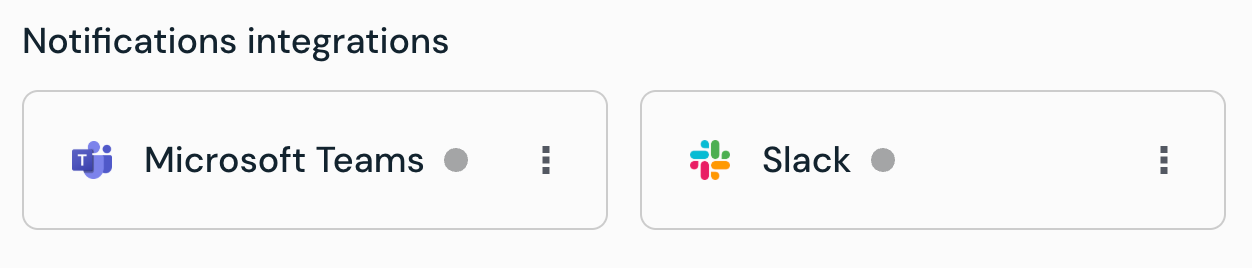
3. Click Connect to use the automatically generated integration link, or share the link with your messaging platform administrator to complete the integration.
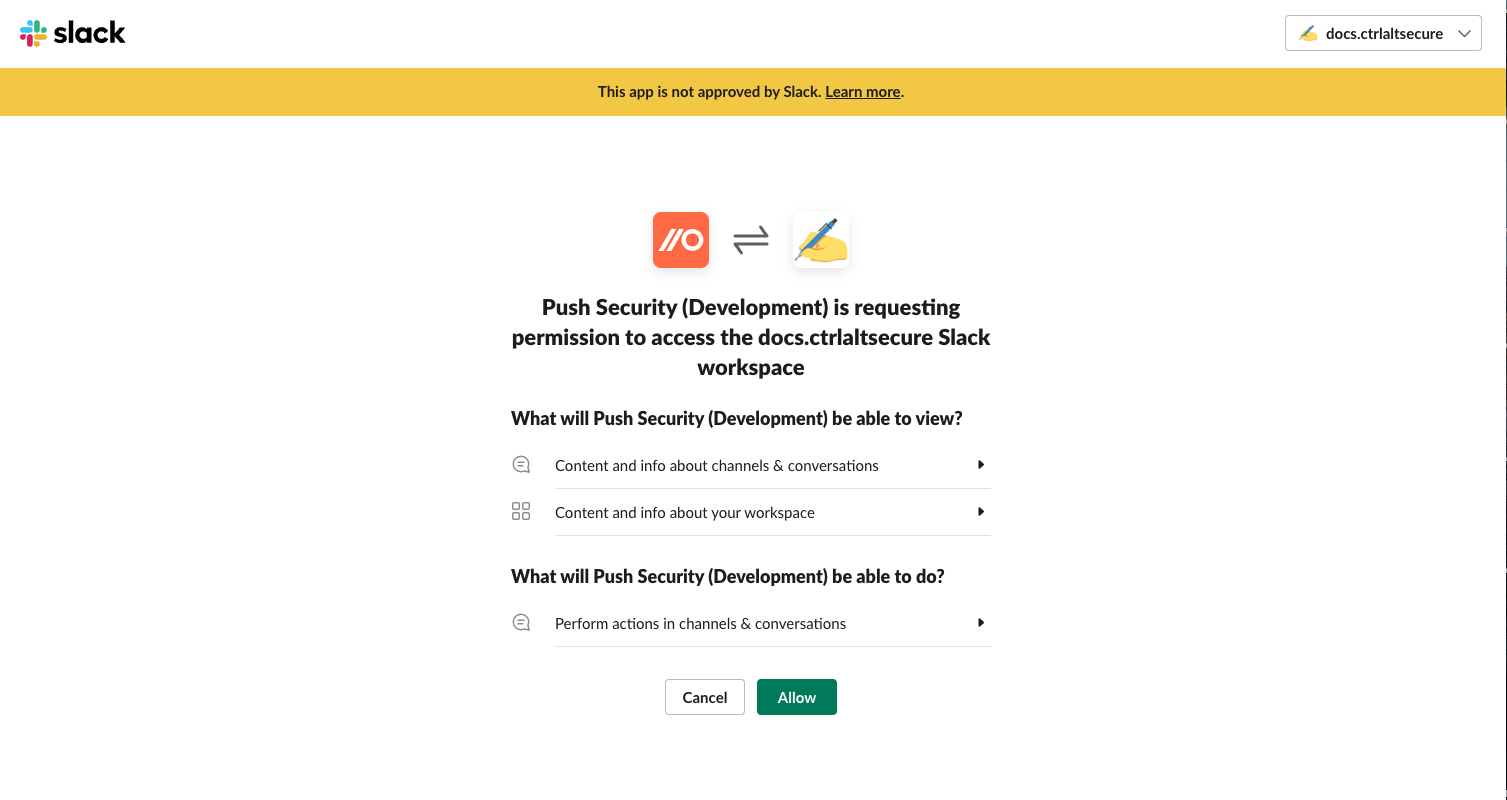
4. Consent to the integration to finish adding the app to your platform.
Select Notification Topics
After you have installed the Push app, you need to select which topics you want to receive notifications about.
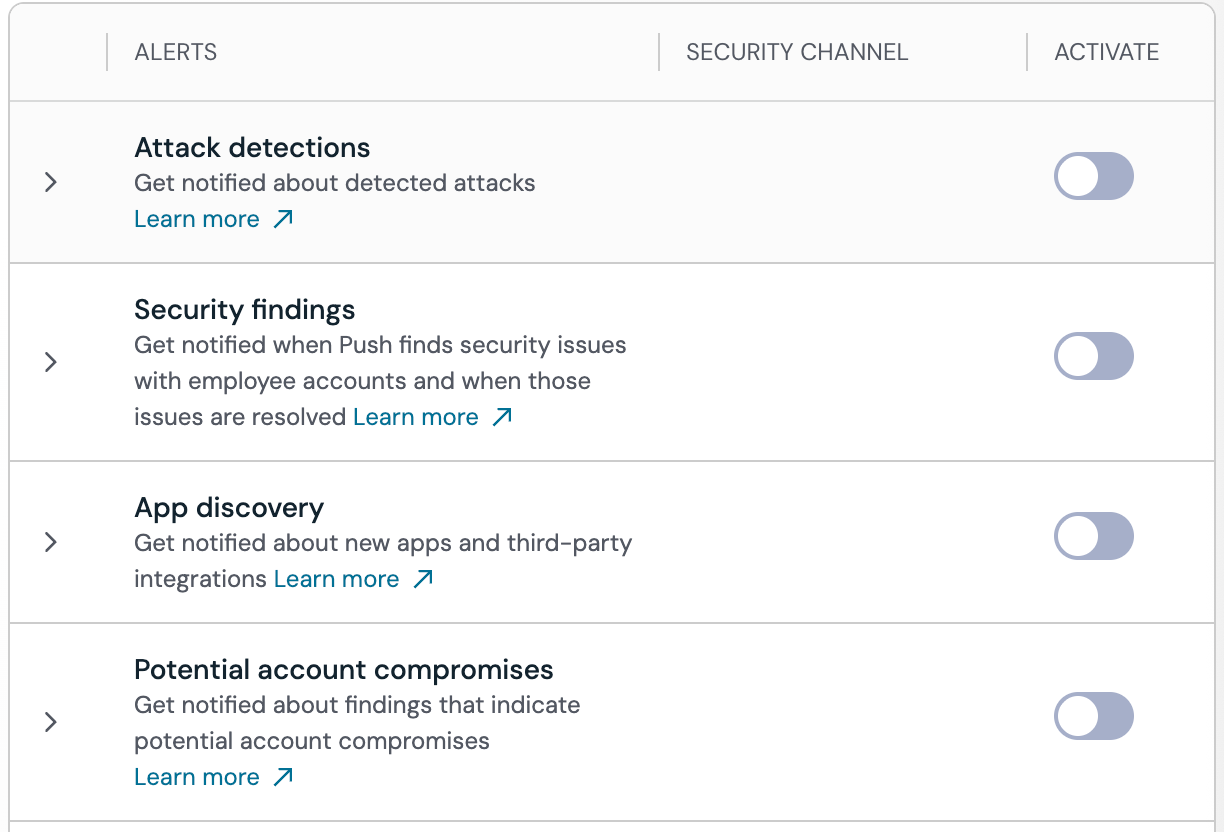
You can enable individual topics or subtopics by using the Activate toggle. When you activate a topic, you will be prompted to choose a channel to deliver those notifications to.
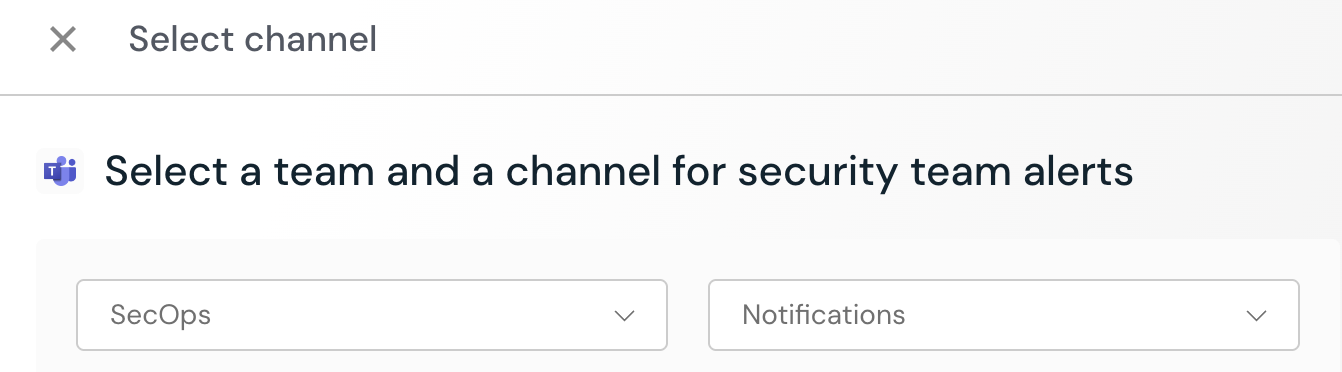
When you install the Push app for Slack, by default it has access only to public channels. You can add the Push app to a private Slack channel by adding Push in the integrations settings for that channel. See this Push help article for more information.
With Microsoft Teams, you can use the Push app to message a private team, but the specific team channel must be unrestricted (public).
Once you have chosen a channel you can then send a test message before confirming.

Topic descriptions
For more information on the topics that you can receive alerts on, please read the relevant article below.
Notification integration status
On the Integrations page, you can check the status of your integration to confirm everything is working as expected. A green dot indicates everything is fine. A red dot indicates that something is wrong, and you may need to update your integration. You can update your integration by going to Settings > Integrations in the admin console.
Deactivating Notifications
You can deactivate messages by toggling off the topic on the settings page.
To remove it from your messaging platform altogether, uninstall the Push app from your Slack or Teams admin pages.
Go to Settings > Integrations > Notifications integrations, select the relevant messaging platform and use the Disconnect button to delete your Slack or Teams integration.