Find suspicious mail rules
Last updated: November 18, 2026
Attackers often use malicious mail forwarding rules to retain access to sensitive email once they have successfully phished an employee. Use Push to review externally forwarding mail rules and verify whether a rule has been created by the employee or a malicious third party.
Prerequisites: In order to find suspicious mail rules, you must complete an API integration with your work platform.
As soon as you complete an API integration with your work platform, Push scans employee inboxes for mail rules that forward to external domains and lists the results on the Mail rules page, available under Inventory in the left sidebar of the Push admin console.
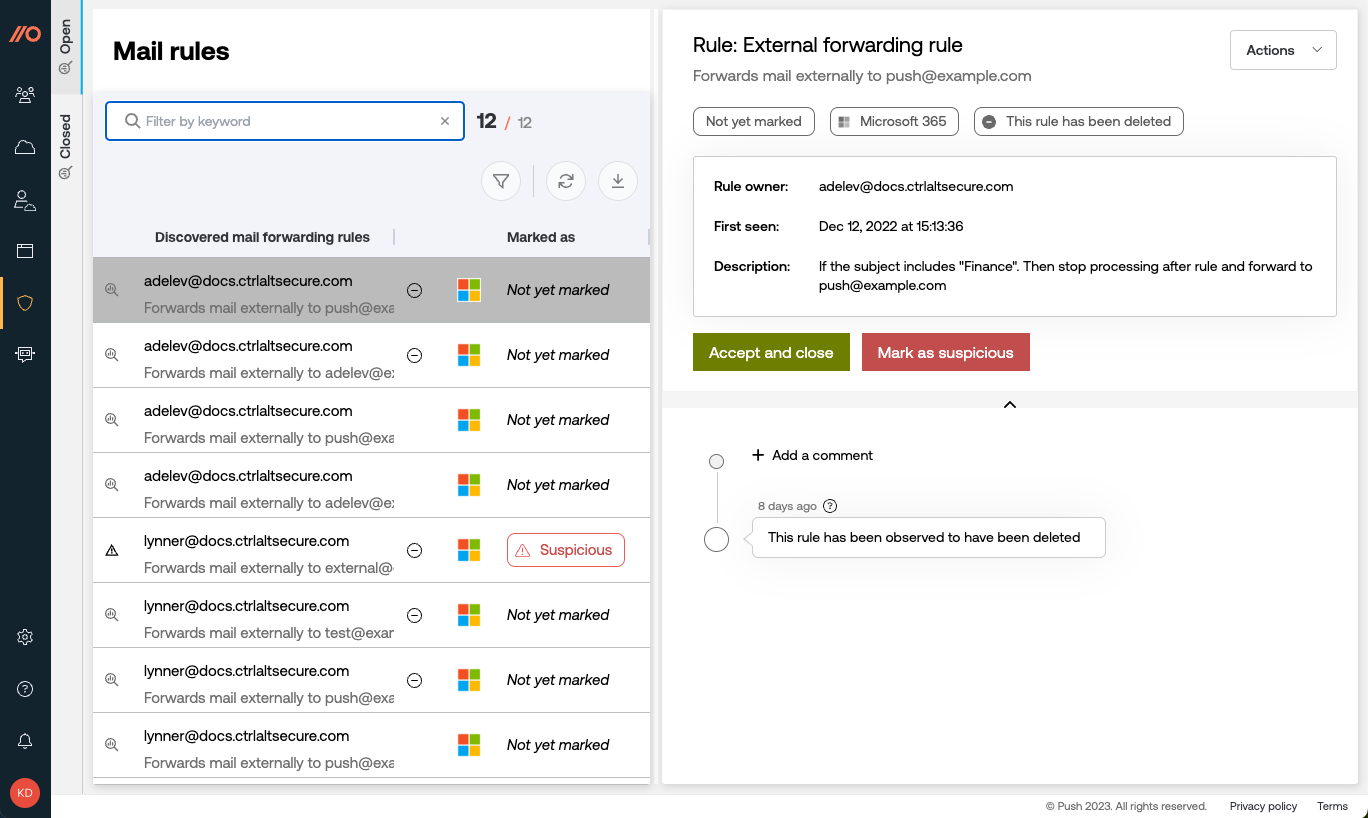
The left panel of the screen shows discovered mail forwarding rules, including whether they’ve been triaged yet and whether the rules are still in use. Click on a rule to see more details about it:
The name of the rule.
The external email address it forwards to.
Which platform it appears on (Google or Microsoft).
The rule owner.
When the rule was first seen by Push.
What the rule is configured to do.
A timeline of activity associated with the rule.
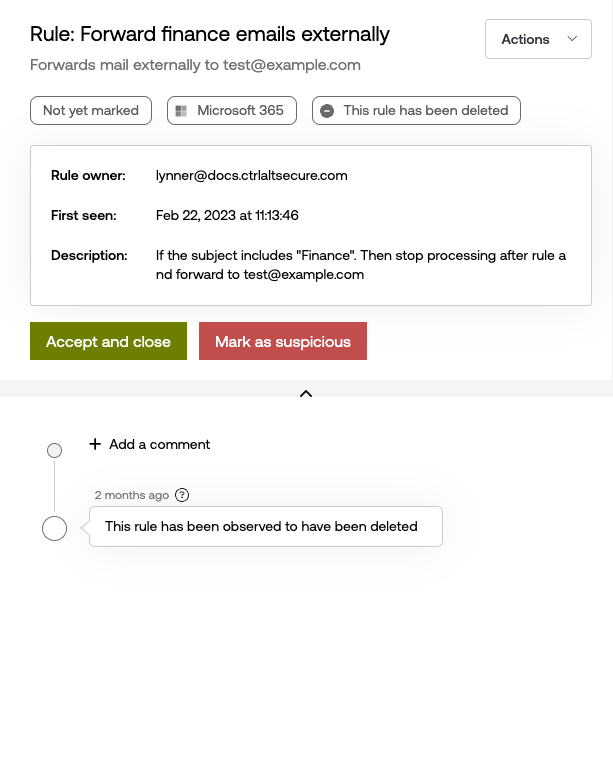
From the right panel, you can accept the rule and close the alert in Push, or mark it as suspicious. Push will automatically disable mail rules you mark as suspicious if they were created in Microsoft 365. Google Workspace does not support disabling mail rules.
Curious about whether you should just disable external email forwarding for your organization? Check out our blog post for Push’s point of view.